Wednesday, April 18, 2012

Using technology in the classroom

As everyone knows technology is growing extremely fast in our country and around the world. Educators can use this to their advantage in so many ways. Students love to explore with technology and computers and most of the time they know more about computers than their teachers. Whether it's organizing their students and their work, using it for projects, or having a way for students to experience the technological world, teachers can use technology everyday for everything.
Here are 4 examples of technology educators could use!


Wordle

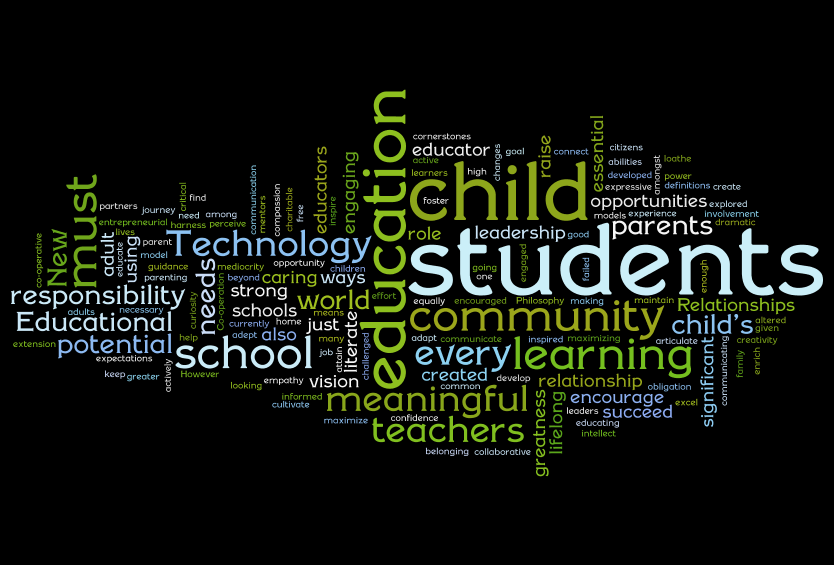
This is a fun way for students to create an image with words about a topic they are studying in class, spelling test, for a creative project or many other ways. A teacher could print a wordle and hang it in the classroom with inspiration and goals for that school year. A great way would be for students to make one about themselves at the beginning of the year with words that describe them and their interests.

Here is an example of a wordle about Education!!


Here's a much simpler one with fewer words and different design about sports!


How to make a wordle!!
1. Type in words that you want on your design. You can also go to a website and highlight and copy words into the text box. Or put a URL into the designated box and it will take the words from that site.
2. The more times you type a word or it shows up in a document the bigger the word will appear in the design.
3. Click on the button "randomize" for it to randomize the colors, fonts, and design until you find one that you desire.
4. Or at the top you can change the font, color, and layout manually.

Now that I've heard about worldes I'm obsessed! I can't wait to use them with my future students! They can even create their own by drawing and writing them!


Twitter

Twitter is a fast growing social networking site that allows for people to interact and keep up to date on friends and family through quick short phrases of where someone is, what they are doing, what they are feeling and much more. You can even attach pictures! Celebrities, news stations and magazines are on twitter and you can follow them to keep up to date on all the latest gossip. Even President Obama has a twitter account! High school students and college aged kids are the ones who use twitter the most and if they are always on their smart phones, ipads, and laptops why not use that to your advantage and get their attention that way. Personally being a college student I always have my twitter open and if my teachers made an account for a certain class I would definitely follow so I could be up to date and never miss an assignment.


Here's what someone "news feed" might look like on twitter!
A box for you to type what you are doing and then all the people you follow their tweets show up as they tweet them on a feed that is always updating. Each person on twitter also has a personal profile with all their tweets and only their tweets and re-tweets on it.


There are many ways for a teacher to use twitter in their classroom and with their students and here are some! Your class can always come up with a hashtag so everyone can connect through that. For example in a tweet a hashtage symbol # and words and phrases after it can be clicked to show everyone who has used that hastag. If a classroom made one being #mccabegrade9 and students added it to their tweets, then everyone could click on that hashtag and bring you to a page where tweets with that hashtag show up.
1. Use as a quick information place. Have a classroom account where the teacher can tweet about assignments, readings, canceling class and more.
2. To share opinions about assignments or discussion done in class.
3. Students can tweet to each other outside of school and ask for help on an assignment or ask questions. If they use a hashtag you can check later to see what they talked about.
4. A lot of colleges are on twitter and students can search for and look at prospective schools that way as well.
5. Have students upload a picture needed for an assignment or architecture or design for an art class. You could have them walk around the school finding things and then meet back at the classroom put twitter up on the projection screen and search the hashtag and see what the students came up with.


Jing
Jing is a tool that you download to your computer and it takes screenshots and videos of your computer screen that you can upload and use for anything. It records your mouse moving and everything you click. This is a great tool for showing a classroom an example or how to access something on their own computers and follow along with the video you made with instructions. You can record a video for up to 5 minutes, and even write on your pictures!

A teacher can upload problems done in class to a class website and students can access it from their house if they need additional help with how to solve a homework problem or review what was done in class that day. They can watch the videos over again when studying for a test. Parent's can even watch the videos too if they need to help their children with homework and don't know how to do a problem.

There was an en example of a Librarian using jing to create a video of how to use the library catalog. Students could watch this instead of always asking questions she had answered and showed them many times before.

A teacher can jing how to create something and the while the students are watching the video the teacher can wak around monitoring their progress and helping when needed.


Edmodo

Edmodo is a social networking site for students and teachers to use to collaborate and communicate for and about a certain class. A student can have multiple classes on their profile where they can click to connect to a profile to talk to the other students and teacher for that class.

Teachers can post information and documents for the class so students can access. Teachers can also write posts about what was done that day in class and upload links and tools for students to use outside of class. My favorite part of Edmodo is the Calendar tool. The calendar is literally a picture of a calendar of that month and assignments are on the days they are due. Students click that assignment and a blurb about what the assignment is about comes up. There is also an easy "turn in" button that students click and upload their assignment to the site. The teacher then grades the assignment and students can see all their grades in the grade section.

This is what a student's Edmodo Calendar might look like.
The Calendar helps to remind them of when assignments are due.


Colleges and Universities have variations of this for there institutions but I have found Edmodo to be much simpler to look at and navigate around. Each class has their own page and everything is on an ongoing news feed so everything is easy to see and access. Edmodo helps to create a better connection and easier communication for teachers and students.

Here is what a student's homepage would look like, an ongoing news feed and a box for them to easily type a question or comment.


Monday, March 12, 2012

PBS Teachers

PBS Teachers
PBS Teachers is a website for teachers of all grade levels to use for lesson ideas and resources. From Pre-K to Grade 12 there are all kinds of resources for all subjects- Art, Health and Fitness, Math, Reading and Language Arts, Science and Technology, and Social Studies. Under each subject for a grade level you can narrow your search to a specific media type including; articles, online and offline activities, lesson plans, videos, projects and much more! Some links are more helpful than others so you need to explore the website and use the search bar to get more ideas for a specific topic. Often times lesson will include references or videos to popular kids tv shows, mostly for the younger grades, including The Cat in the Hat, Arthur, Bernstein Bears, Curious George and others. They have great videos to add with lessons which is a way to incorporate technology!

Here is a tutorial video about how to navigate PBS Teachers and more in depth with its features!


For example here is a lesson Plan for Grades Pre-K-1 Math that includes a video for the students to watch, an interactive activity and extensions if you want to further the activity more and challenge your students. A teacher can even take a lesson plan and use parts and alter activities to their classroom, student's  ability and the resources available to them.
Math with Dinosaurs


PBS Teachers has many links to safe and educational websites for teachers to have students work on in class. Talking about an activity then having students do an interactive activity online is a great use of technology and furthering their learning. For example when discussing weather in grades K-2 this Cat in the Hat interactive activity can help students see the effects of weather on a scene.
Cat in the Hat weather


Another example would be when talking about geography and China here is an activity involving a life experience of moving and tying it into an art activity. This lesson plan has a episode of a show for the students to watch, the class can have a discussion about moving and different cultures, and do an arts and crafts project as well.
Chinese Lanterns


PBS Teachers has videos for every subject and many series of characters and different episodes. These are great to even watch during snack time or when the class needs to settle down or have quite time. They are kid friendly, entertaining, and educational! Here is a series where two characters Wilson and Ditch travel across the United States!
New York City

Monday, February 20, 2012

Internet Safety for Elementary Aged Kids

The Internet is powerful. It has almost anything someone would want to know, do, or see. As our children become more interested in and experienced with computers and using the Internet, we as adults need to help monitor their activity. Here are some tips and safety information for parents with Elementary aged children.

Computers can be a great resource for educational activities and learning. There are many sites for kids that have educational and leisurely games. It's difficult to find websites that are 100% kid friendly with no ads or possible links to other sites. Here a few trusted sites with tons of games and activities.


Crayola has a colorful website
Crayola Crayon Website-Games

If your child loves Arthur they have a great site as well
Arthur Games


PBS Kids has tons of games and printable activities for kids. Your child can pick from many different characters and visit their site to play games and explore much more.
PBS kids game site

PBS also has a site Kids Go! with more games for the next age level
Kids GO!


Here are some simple tips to help keep your kids safe online
  • Becoming informed and comfortable about the Internet and the sites your child will be visiting will help you to know what they will be doing and how to use Internet protection and check their activity.
  • Use the Internet browser safety settings to block certain material and inappropriate or explicit content.
  • Place the computer in a family room or kitchen so you can supervise your child the whole time.
  • Bookmark your kids' favorite sites for easy access.
  • When your child is researching, sit with them. This way you can correctly spell words and phrases to help find the appropriate information or pictures.
  • Create a shared e-mail account that your child and you can use for their online activity. Use this to sign up for games and check regularly to monitor any e-mails sent to them
  • Check the computers browser history
  • Never reveal personal information such as an address, phone number, or school name or location. The more information you give out the more likely it will be miss handled and seen more freely on the Internet.
  • Use only a screen name when creating accounts.
  • Never allow children to go into chat rooms and participate. This is the most common place for predators to pose as children. Never agree to meet anyone from a chat room in person.
  • Never trade personal photographs in the mail or scanned photographs over the Internet.
  • If you allow your child into a chat room even for a game, and they meet a new friend insist on being introduced and see their conversation.
  • Take what your child says seriously if they mention about hearing or seeing something uncomfortable or inappropriate. Contact your local Law Enforcement Agency or the FBI if your child has received pornography via the Internet or has been the target of an online sex offender.

Talking to your children right away about Internet safety will help them to be safer online. Make a list of rules and make sure your child knows them. Post them by the computer to remind them. Talking about the dangers of the Internet and to stay away from unknown people and websites will help to protect them. If you go over rules from the very beginning then when they get older and move into Middle and High School were there are more problems with Internet safety, they will understand and cooperate with rules and restrictions you need to place at a later date.

Watch this fun and easy to understand educational video with your kids and discuss Internet saftey with them.


Stress the importance of never giving out any information to anyone!!

Talk to your kids about internet safety! Parents are their best online protection!


Wednesday, January 25, 2012

My classroom technology experience


This is our reality now, technology is consuming our children's and student's lives.

Everyone knows that technology is evolving every day. However some might not know that technology in education is growing and becoming integrated into everyday activities in the classrooms. All throughout my education in Elementary, Middle, and High School I've used technology. I went to public school in Wellesley, Massachusetts. Wellesley Public Schools specifically has a plan to intergrate technoology so students and teachers alike can learn and grow with our ever changing society.

Technology in the Wellesley Public School System

My first interaction with technology that I can remember was in Elementary School. I remember using AlphaSmarts! Most people probably have no idea what these are because there have been so many advancements since them. AlphaSmarts are keyboards with a small screen that are used to type assingments. After finished typing we would connect the AlphaSmart and the computer together with a cord and print out our paper.

These dinosaur "laptops" were the beginnings of my experience with technology!

We also used over head projectors. These were easier than chalkboards because chalk boards were messy and created dust.Teachers used these to write assignments or problems, and it was easier for the whole class to see. Or a teacher would pass out overhead projector sheets and students would answer problems on them, then present them to the class. This helped students learn how to present in a way that was fun to do and gave them public speaking skills. These also made it possible for the teacher to sit down facing the class and teach them instead of turning their back to them while writing on the board, which is always a concern for teachers with classroom management..


My Elementary School also had the Mac book carts. A cart with about 25 Mac books that a teacher could check out for a certain time for the students to do assignments on. I remember we as kids were so excited to use computers. It gave us a feeling of importance and independence.

In Middle School the amount of technology I experienced increased respectively. We still had and used the Mac book carts. We also now had computer labs that we would go to occasionally if the teacher reserved it. Often it was for research on a project. Another form of technology I used in Middle School was the Elmo. This was a more modern and advanced form of the over head projector. This allowed the teacher and students to place a book or paper under the camera and it would reflect it onto the board.An image of whatever was on the board could be captured and uploaded online for students to review afterwards. I remember using this when sharing homework. Students would put their papers up and the class could see their work.

The Elmo is a direct advancement from the over head projector and shows exactly how fast technology is evolving.

In High School there were "Mac labs" as well, rooms filled with 20-30 Apple computers. In High School we went there for research often as well. As High School students we were starting to use technology more and more. Almost everyone had a cell phone and a laptop. Teenagers are more likely to research a topic online than go to a Library and look at books. Teachers need to realize their students strengths and if they are always using technology they should use that to their advantage. In High School all of our essays had to be typed and printed for the teacher. This is a form of technology that students need to know; how to format a document correctly and all the bells and whistles to make a project look top notch.

In High School we also had SMART Boards. These looked like white boards but could be interactive with the computer, students, and teachers. The screen on the board is the computer desktop and the specific Notebook application was used for the SMART Board. Teachers could use these boards for everything in a lesson plan. After writing something on the SMART Board with specific colored pens a document could be saved. These SMART Boards could then save what was done on them and be uploaded online for students to review later, or if they missed a class they could print them out.


These SMART Boards are one of the newest pieces of technology for the classrooms. As you can see they work for all ages and grades. Elementary to College aged students can interact with the SMART Board for a variety of subjects and activities. Students can come up to to the board and write answers down, make diagrams, write sentences and much more. They are easy to use and help engage the students in a fun and interesting way.


Children younger and younger are getting personal computers and playing online games, surfing the web, and spending hours on the computer. Children and teenagers are becoming more advanced in technology than their parents and this is causing censorship problems. Because student aged children are so technology oriented with; cell phones, Mac books, ipads, ipods, and video games, educators need to realize this and use this to their advantage. Most typical students in any grade of school would rather use technology to learn than sit in a lecture or read a book. Therefore educators need to be knowledged and creative when using technology.

There are always new gadgets coming out for technology and the Internet is expanding every day. There are so many ways you can use technology in the classroom and here is a site with some activities and ideas to get you started!

Ways to use technology in the classroom