Monday, November 4, 2013

iPad Project with Montlieu

My High Point University technology class has been paired with Montlieu Academy of Technology to work together on an iPad project. Each High Point student is paired with one Montlieu student, and then small groups were created to make a larger project.

We are working with the iPad application MyCreate which allows students to bring their stories and ideas to animation through stop motion video. A series of still photos are taken, moving the object of the story slightly each time, and combined to create a motion video.

The group I am working with has designed the mini unit iCreate The Three Little Pigs. Our group has three students and each student is going to be their own pig, in a cohesive MyCreate story. Our lessons include reading various versions of the Three Little Pigs, exploring with the Lego Story Starter kits, writing individual and group stories, and building and video taping their finished product with Legos and MyCreate.


Week one:
I met the student I will be working with for this project, he is a second grade male, eager and excited to learn, listen very well, follows directions, and works well with others. As a group we read the original version of The Three Little Pigs by Nancy Parent and my student was listening and engaged witht story, and answered questions about the plot when I asked. We explained the overall goal and timeline of the project. The students built with the Lego Story Starter Kits to get to know the pieces in the kits. My student was creative with his design, he built a property that was like a castle.

Week Two:
We read the story The Three Ninja Pigs by Corey Rosen Schwartz and the students really enjoyed it. This story included houses built out of bricks,
concrete, metal and barb wire and the boys enjoyed seeing those. After reading we worked with the iPads and practiced using the MyCreate app. My student worked very well with the iPad, being careful and considerate. I showed him an example and then he practiced taking videos of students and people walking down the hallways. He enjoyed replaying the videos and watching people walk. He did very well for a second grader, some fine tuning of holding the iPad still and only moving slightly is what I think would need to be worked on before the final project.

Week Three:
This week we read The Three Little Wolves and the Big Bad Pigs by Eugene Trivizas and talked about how stories can be told in different ways, three pigs or three wolves, and that point of view can change how characters are thought of. The students were really shy with answering the questions me and my fellow classmates were asking them. We talked about the two previous stories we read, and what all the houses were made out of in every book. Then the students drew what they would want their pig house to look like when we make it out of Legos and add it to our story. My student created a couple of different houses, including metal, brick, and a "regular" one. He decided he liked the one made of brick the best. As my student was drawing his houses, I asked about the elements of his drawing and he had a reason for each of them.


Week Four:
This week the students took the drawings that they created last week and built them out of Legos. My student built a brick house and added details that he thought of on his own. He added guards, tree, traveling guards around the whole property, barb wire and more. By adding these protective elements it showed me that my student understood the assignment of creating a house that would protect his pig inside from the wolf.

Week Five:
The students drew the houses they were going to create, paying attention to the details and that it could be realistically created with Legos. As a group we talked about the story that we were going to create. One of my partners Caroline Stalvey typed up the story that we talked about as a group. We asked the students what they wanted to happen to their wolves, if the pig would blow down their house or not.

Week Six:
My student was absent this week. I wasn't aware that he was going to be absent. I was nervous that because he was absent he wouldn't be aware of the field trip on Friday. The other two students built their houses out of Legos.

Final day at HPU:
The students came to High Point and we created the final project with the MyCreate app. The students built their houses and we set up the scene. The college students did most of the work with the iPad and app because the students didn't have enough practice to get it to be "perfect", but the students helped moved the pieces and say the parts of their wolves. I think this day went really well and the students enjoyed coming to High Point for a special treat and watching the video of their story.


If I did this project again I would have had the students practice the MyCreate app more so on the final day they could participate more with creating the story. I also would try to see them twice a week to get more lesson plans in and to get them more comfortable with us and the MyCreate app. My group worked really well together and I wouldn't want to change much, only working with them more!

If I was the administration from High Point or Montlieu doing their project again I would have groups be the same grade level. Although our three students worked very well together the ability levels vary greatly. Having grades 3-5 for this project might work better when using the actual myCreate app because older students could make the video more easily than the younger students.

Monday, April 22, 2013

Splash Math 2 -iPad App

The iPad Application Splash Math 2 is a mathematical application geared towards second graders and the content intended to be mastered in the second grade. This is a free application through the iTunes application store and I would highly suggest downloading it. You can also buy the full version which will give you access to more sections of mathematical topics in the game. The game has high quality colors and engaging graphics to entertain children. The theme of Splash Math is indeed the ocean and the character icon is a frog that pops the bubbles of the right answer.


The home screen has a couple of different options for you to choose from. The first and main option is PLAY, this will give the child different questions that are related to addition and subtraction, place value, counting by 2s, 5s, and 10s, greater than or less than numbers, base ten blocks, and more. The PLAY feature allows a variety of different topics to be practiced as one review. At the bottom on the screen there is a cool feature called the scratchboard. It's a small grey tab that can be pulled up and and your finger acts as a a pen and can be used for scratch work. Rounds of PLAY go by 10 questions, but the amount of rounds play can be of your choice.


Here are two examples of questions asked during the PLAY game. The one to the left involves place value, identifying the value of a certain digit in a certain place value spot. The one to the right involves base ten blocks, and identifying the correct number represented by the blocks.


There is also a part of the main screen, called math facts, that can be used to practice addition and subtraction problems to become more fluent in basic mathematical facts. The range of numbers used in the addition and subtraction problems can be changed, as well as the amount of questions asked. A question must be answered before moving to the next one. The scratch pad feature is also available in this section. This section allow students to practice their basic math facts in which more mathematical facts are built upon. Mastering these quick calculations is beneficial to the speed of mathematical calculations in real life.

The practice section allows students to practice second grade math concepts through answering questions. Completion of each topic in percentage form is shown for a parent, adult, or teacher to see progress. Students can move from topic to topic and within subtropics. The lite (free) version does not give access to every topic, therefore a taste of what the full version is like is given for students to test out. These problems are again a different type of review for students to master second grade concepts.


This application is best used for individual students to work on. It would be useful for an extension part of a lesson, after a topic has been used and practiced students can take an iPad and practice what they have learned in a fun educational game. I would also use this application for students who need differentiation of a lesson, specially Exceptionally Challenged learners who might need more practice with mathematical concepts. I would use this for EC students because I think the review concept of the game is not geared towards Advanced Learners who need higher level mathematical problems. The game also features sound if necessary which could be useful when having English Language Learners needing to hear a problem read allowed. This game is not intended to teach students the concepts and rules of mathematical concepts, instead it works as a fun and education review game to practice the skills they have already learned.


Resources:

Splash Math Icon Picture Retrieved April 22nd 2013 from: http://nymetroparents.com/article/Which-Apps-Will-Help-My-Child-With-Critical-Thinking-and-Memory

All other pictures screen-shoted from Katie McCabe's iPad.

Wednesday, March 13, 2013

Integrating Technology into Science

There are many ways to incorporate technology into the science lessons of your classroom. The more overlap between subjects the more students will connect topics. Technology is advancing every day making our society more competitive, and teachers needs to grab ahold of these advancements and bring technology into the classroom every day.

Here are some of the best practices that I've found for incorporating technology.


LEGO has come up with LEGO WeDo activities that allow lower elemetnary grade students to build animals and program them with computers. Also LEGO has created LEGO Mindstorm kits which would be be used in upper elementary and middle schools, that allow students to create robots that can be programmed to do certain functions. When creating these animals and robots out of LEGOs students are developing experimental apparatuses that allow them to explore and question the factors that make them move. (K. Williams, I. Egel, R. Poveda, V. Kapila, M. Iskander. Pg. 4) Students are engaged with building LEGO models and connecting them to computers to make them mechanical. By using computer programs they can collect data and analyze why something is happening. The models that students can build can represent every-day problems and demonstrate how things work.
Things to remember about working with LEGOs is that the ratio of kits and devices to students should be as low as possible to facilite that most interaction and hands-on engagement. Students also need to be taught how to use the equipment properly. (K. Williams, I. Egel, R. Poveda, V. Kapila, M. Iskander. Pg. 21)


Go!Temp probe ware allows students to take and record temperature data. Students use the thermometer-like rod to capture the temperature of what they are experimenting with. One activity allows students to explore heat and what traps heat into the body. Students would measure the temperature of their open-palm, then their hand in a mitten and see if the heat is greater in the mitten and why. Students can also measure the temperature of water and what makes water colder or hotter. Probes are tools that students can use to test their hypothesis of temperature and it's factors.

Through building and testing models students are participating in engineering objectives. Students should be allowed to explore  design, and build LEGO activities and machines that interest them. They can then use their robotic animals and machines to test it's functions and abilities. Elementary aged students should be focusing on materials and tools used to design and build machines and then testing them to understand their purpose. (S. Brophy, S. klein, M. Portsmore, C. Rogers pg. 370) Experiments involving LEGOs and probes allow studentsto plan, make, and evaluate their device while being reflective and adaptive of their curiosity.(S. Brophy, S. klein, M. Portsmore, C. Rogers pg. 375)


There are many ways to incorporate technology in science lessons. These are only a few. When using these tools students are engaged. Teachers should use technology to enhance instruction and exploration  Students are collaborating about their ideas and questions and becoming "content creators" when using these technology tools. (G. Bull, R. Bell. Pg. 1-4) When using these tools students are participating in inquiry-based learning and becoming active learners and problem solvers. Students are engaged and use their imagination to explore how things work in our world.


References
G. Bull, R. Bell. Educational Technology in the Science Classroom. Technology in the Secondary Science Classroom. (Chapter 1)
K. Williams, I. Egel, R. Poveda, V. Kapila, M. Iskander. (2012) Enriching K-12 Science and Mathematics Education Using LEGOs. Advances in Engineering Education. 1-27
S. Brophy, S. klein, M. Portsmore, C. Rogers. (2008). Advancing Engineering Education in P-12 Classrooms. Journal of Engineering Education, 97(3), 369-387.
Picture of LEGO WeDo models and computer. Retrieved March 13, 2013, from: http://www.flickr.com/photos/curiouslee/2635731642/

Monday, February 4, 2013

Technology in a Mathematics Lesson?


For most people technology and math are two separate areas that have nothing in common. One's the future that's always changing and one's the past with specific algorithms and equations. However as an educator, fusing the two together has great advantages for students to learn and comprehend mathematics. Students are more versed in technology and it can aid in their understanding and engagement with math.

There are many different pieces of technology that teachers can use to present information, give examples, and practice mathematics. Most young to mid adults probably remember using overhead projectors and document readers. The present technology in classrooms is interactive white boards and iPads. And the future pieces of technology going to be used in classrooms is still to be developed. Technology is changing fast and teachers need to embrace this, learn the new ways, and teach using these pieces of technology because it's what the tech-savvy younger generations are already using in their free time and at home.

Interactive white boards are probably the most common piece of technology used for mathematical instruction. Students can see what is being taught with examples and visuals, rather than trying to imagine the concept in their head. Having students come to the board and complete problems and activities allows for the whole class to see how someone at their level is solving a problem. If students have multiple ways of solving a problem then allow for space to show these. This brings a piece of collaboration and entire classroom involvement to the lesson. This also brings a factor of enjoyment and motivation, students can come to the front of the classroom and show their work. Engaging the entire classroom; either having everyone write the answer to a specific problem and how they solved it on the board and comparing it, or having a race between teams to see who can solve and write their answer on the board first. Allowing for students to move around the room will gain their attention and excitement for math.

Visual representations and imagery improve knowledge retention. Using images of angles and shapes and allowing students to interact with these visuals will help them connect the concept to a image and vice versa. For example having an activity where an item like a box of cereal and money is displayed, and having students create the correct amount of money to buy the cereal with coins and dollar bills. Or for higher grades, having images of pizzas with specific amounts of slices missing and figuring out what the fraction is, of either pizza gone or still there. 

Animation and videos allow for engagement as well. These can be used to explain a lesson, concept, or problem; giving the teacher a break from lecturing and giving the students another way to listen to information. Here is a quick voki avatar I made. It's Abraham Lincoln and he is asking the class to figure out how many years he lived. By having an avatar ask a question that students have to listen to and figure out what operation to use, adds variety to the classroom and another way of presenting a problem. 

In previous blog posts I talked about using iPads in the classroom. For mathematics lessons, each student could have an iPad and it would work like a white board but more fun! One way would be to write a problem on the board and have each student solve the problem on their iPad. Have each student hold up their iPad and see the answers, and if necessary share with the entire class different ways of solving the problem. 

Computer games using math skills are great for free time or if a student is finished early. Quick and short math games allow for students to practice their basic math facts and retrieval of math facts quickly. This website of Interactive Math Sites is a "livebinder" with lots of tabs to different sites with interactive math games. While browsing I found some that would be great for individual practice, and some that could be used for a whole class activity. 

In a study done in the UK in 2003, children said it was easier for them to remember things when using an interactive white board. Research has been done and is constantly continuing to be done to see if technology and the use of it in the classroom is beneficial to the students and their ability to grow as learners. Technology aids in children's learning because it engages them and motivates them to interact with the content and lesson being taught. Opportunities that involve visualisation and physical interaction will further the connections between concepts and real-world application.

 
References
Goldenberg E. P. (2000). Thinking (and talking) about technology in the math classroom. The K-12 Mathematics Curriculum Center, Issues in Mathematics Education. Retrieved from http://www2.edc.org/mcc/pdf/iss_tech.pdf
Prabhu, M. T. (2010). Technology adds to students' math comprehension. My eSchool News. Retrieved from
http://www.eschoolnews.com/2010/03/17/technology-adds-to-students-math-comprehension/?
Two kids at interactive white board picture. Retrieved From http://www.hmheducation.com/singaporemath/interactive
whiteboard-lessons.php
Girl at interactive white board picture. Retrieved From http://www.borenson.com/AboutHandsOnEquations/HandsOnEquationsfortheInteractiveWhiteboard/tabid/1383/Default.aspx

Sunday, November 18, 2012

Montlieu Elementary

This semester I had the opportunity to go to Montlieu Academy of Technology, an elementary school that is entirely technology based. They encourage learning through technology, using technology in the classroom for instruction, and every student has an iPad that they work with. I went every week and worked with a young kindergarten girl on various iPad apps. We used Comic Life, Keynote, Scribble Press, and Little Writer for Kids.


Comic Life-
I worked with my student partner on creating a comic that included what her school life is like, what her hobbies are, and what she wants to be when she grows up. This was a difficult activity but she and I both enjoyed it. The app was easy to understand and navigate from my cognitive level, but for a kindergartner she had no idea how to maneuver text boxes and pictures. I did most of the organization and thinking of sentences, and she helped to type some words. Although this was difficult too because she didn't know her letters to find them on the keypad. She enjoyed going around her school and taking pictures of things we could put into her comic. However this was also difficult because it took a lot of encouragement from me as to what we should take pictures of. I would suggest using this app for grade 3-5 because students will be able to work more independently and creatively. I personally made a comic and enjoyed it so I think older students will too.

Here is a page from a comic that I made with Comic Life.
This page was about my favorite thing to do, travel!


Keynote-
We didn't use this app too much because again of the difficulty for a kindergartner. My hope for this project was to make an acoustic poem for her name. We were going to do a different slide for each letter in her name and then write a word that describes her that starts with that letter on the slide, and add some sort of picture that would relate. However this plan abruptly stopped when she didn't know the letters in her name and didn't know words that started with those letters.


For confidentiality I couldn't show my student's name. But this is what I was hoping our project with keynote would look like. Each letter in her name would have their own slide.


Scribble Press-
I started suing this app when I realized we needed to start way more basic than adjectives and presentations. I wrote out the alphabet and asked her to tell me each letter. She knew most but struggled with about 5-8 letters. I found this sometimes difficult because after we figured out what the letter was, I returned to it to check on her knowledge and she had no idea what the letter was. She would guess completely different looking letters for some letters. When I drew a P after she thought for a long time and I sounded the letter out she said it was an M.
Then with this app I wrote all the letters out in a yellow color and had her traced over them with a different color. She again knew most of the letters and the second week we did this she knew more than the first. However she only knew uppercase letters no lower case yet. I asked her to say every letter when she traced over it and sometimes she had no idea what the letter was or would guess random letters.
This app is mostly used for coloring pictures but it was a way we could write the letters out and she could trace over them.


On the left is when we practiced the whole alphabet.


One the right is letters that I kept rack of that she struggled with and we practiced them again.


Little Writer for Kids-
When I realized we needed to work on our basic letters I remembered I had downloaded this app. I thought it would be appropriate for her level of letter knowledge. It allows kids to trace upper case, lower case, numbers, shapes and words. You trace the letters by follow pictures that move, this way students learn the correct way to write letters.


One the left is how a letter first looks when it comes up.


One the right is how a letter looks mid-tracing it. The small fish move as you write the letter so you know where to go next.


This app also has sound to say which letter it is but I turned the sounds off to test her knowledge of the letters. Each time a letter came up I asked her what it was and she most likely told me the right answer. I really tried to have her work on learning the letters without me telling her. If she didn't get the letter I again sounded it out and said words that start with that letter. This sometimes helped, but mostly if she didn't know the letter she didn't know it.

I really enjoyed using this app for a younger age group! It allows for guided practice from the app and sounds to help teach them as well. As they become more comfortable the can move to words and lower case letters.


Overall Experience:
Leaving this experience my feelings are mostly of confusion. I felt as though each week there wasn't a structure of set plan that I could follow, and know what to do. The apps that were assigned for us to use-Comic Life, and Keynote, were way to advanced for my kindergarten student. I think these types of apps would be better suited for fourth and fifth graders. Also I am confused as to what I am suppose to be walking away with in terms of knowledge. I know we got to work with and experience the iPads but because my student couldn't engage in them with me I didn't learn too much from them. I think we should either have older students with these apps, or get to choose more learning type game apps with younger students. I enjoyed the games better because they were more enjoyable, and we were able to use our knowledge of finding good and educational apps. However another struggle for me was not only the age of my student and trying to work with iPads but the cognitive knowledge  I found myself working on learning the alphabet more than learning how to use iPad apps.
However I did enjoy working with the students because it's always enjoyable to do that. It was also interesting to see a school where every child has an iPad. Also to see how as they get older in grade they integrate them more and they become more independent with the technology.


References:

Comic Life picture. Retrieved November 15h 2012, from: http://blogs.sd41.bc.ca/learningtech/software/comic-life/

Scribble Press picture. Retrieved November 15th 2012, from: http://www.appeducation.com/2012/02/19/scribble-press-the-best-drawing-app/

Little Writer for Kids picture. retrieved November 15th 2012, from: http://apptasticforkids.blogspot.com/2012/07/little-writers.html

Thursday, September 6, 2012

iPads in the K-2 classroom

Teachers! Get on the technology train because it's moving and not stopping!!

Technology is part of our everyday lives now. Almost everyone is always on some piece of technology throughout the day. Young children know how to use their parent's cellphones, computers, and iPads. They mostly play games or watch television shows, but now teachers can use their student's tech-savvy ways for learning in the classroom!


Apple technologies has come out with iPads that are becoming a great tool and resource for the classroom. Teachers need to understand their students and how they want to and how they can learn best. Children love using technology. Teachers can find effective education apps from the Apple store and learn of ways to use the iPads, and children will be more energetic and focused on learning because it's FUN! Kids love to touch things and be involved and this is a great way to give them that satisfaction. They like having something in their hands and this personalizes it for them. Instead of using a big screen projector students can have their own screen that they can give all their attention to.

iPads can be used in all grade levels for all subjects. Kindergarten, First grade, and Second grade can use the iPads too even though these students are younger.

iPads in a Kindergarten classroom allow students to work at their own pace and skill level. The teacher can use different applications and levels for her students, helping her with differentiated instruction.


Ways a teacher can use the iPads in their classroom:
  • Searching and surfing the internet- for research on a project, author, famous person in history, pictures for a collage, anything! Then the class could gather and talk about what they discovered.
  • Using word-like apps like Pages- to practice typing and writing letters, words, and sentences.
  • Speaking into the iPad through the microphone and listening to yourself.
  • Watching videos of how to do a math problem, a tutorial, video on youtube, or an interview.
  • Taking videos and pictures of things they are doing.
  • Applications act as games but they have curriculum based concepts.
  • Reading stories and books.

These first graders used technology and made a video showing how they use the iPad in their classroom! Their examples are practicing sight words, reading a Dr. Suess book on the iPad, and designing their own play.


Students can use an iPad individually but there are many ways to work in groups or with a partner. Almost anything a child can do on an iPad can be made into group work. Unless it's an individual assignment. For example a group could research for a presentation together. 


Or partners, and small groups could play a math game together like this one. A memory game than can have 1, 2, 3, or even 4 players.


There are thousands of applications for teachers to use and download onto the ipads. They have every subject and content area a teacher would need! 

Some Apps that are fun and educational to explore for grades K-2!!

  • Pages -Like a word document and with lots of features
  • Keynotes - Like powerpoint
  • Scribble Press - A coloring pad that has different markers, shape stamps, and pictures. I made this to show all there is to do! -->


Although iPads can't replace instructional teaching every day in a classroom, they allow students a time to get a break from hearing the teacher just talking. They have time to be independent or work as a group sharing one iPad. The students get time to be creative and explore apps like drawing pictures or answering math problems to navigate their way through space.

Apps that students use on their iPads at school can be continued at home on other Apple products. This instills learning not just in the classrooms but at home too. They will want to play games, but it will be educational as well and sometime review of what they have been learning in class.They can continue their knowledge further. Which is what every teacher wants to hear! 


References

Boy looking at ipad. Retrieved September 6, 2012, from: http://pltprincess.wordpress.com/2011/06/15/best-apps-for-kids-iphone-ipad-and-ipod-touch/

Eric Shultz (The Huntsville Times). Retrived September 6, 2012, from: http://blog.al.com/breaking/2010/11/lynn_fanning_elementary_studen.html


Richard Colosi Media. June 30th 2011. iPad in Literacy: Using iPad in the Classroom. Available from http://www.youtube.com/watch?v=MOYvM8FdXtE

Keri Wiginton (St. Petersburg Times). (Students using iPads) Retrieved September 6, 2012, from: http://www.appleinsider.com/articles/10/06/03/apple_rewards_elementary_school_students_excitement_for_ipad.html

Keri Wiginton (St. Petersburg Times). (Students using iPads) Retrieved September 6, 2012, from: http://www.appleinsider.com/articles/10/06/03/apple_rewards_elementary_school_students_excitement_for_ipad.html

Wednesday, April 18, 2012

Using technology in the classroom

As everyone knows technology is growing extremely fast in our country and around the world. Educators can use this to their advantage in so many ways. Students love to explore with technology and computers and most of the time they know more about computers than their teachers. Whether it's organizing their students and their work, using it for projects, or having a way for students to experience the technological world, teachers can use technology everyday for everything.
Here are 4 examples of technology educators could use!


Wordle

This is a fun way for students to create an image with words about a topic they are studying in class, spelling test, for a creative project or many other ways. A teacher could print a wordle and hang it in the classroom with inspiration and goals for that school year. A great way would be for students to make one about themselves at the beginning of the year with words that describe them and their interests.

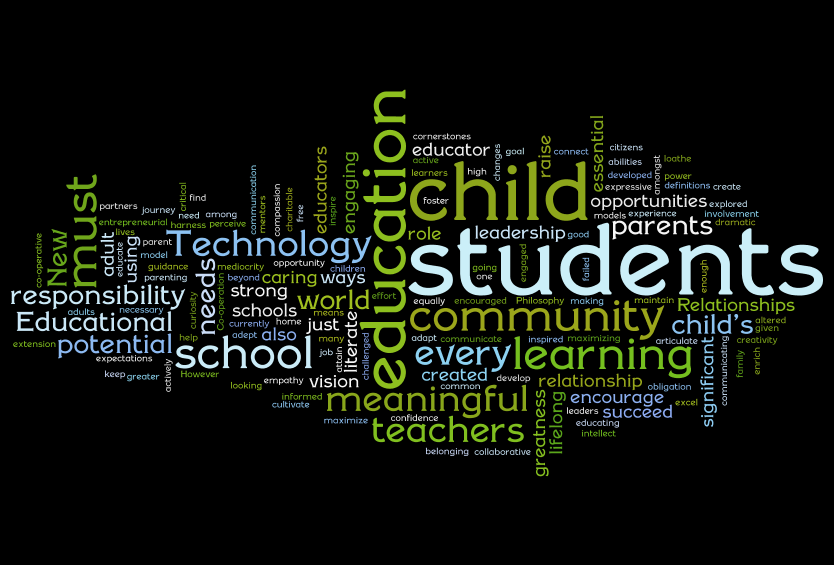
Here is an example of a wordle about Education!!


Here's a much simpler one with fewer words and different design about sports!


How to make a wordle!!
1. Type in words that you want on your design. You can also go to a website and highlight and copy words into the text box. Or put a URL into the designated box and it will take the words from that site.
2. The more times you type a word or it shows up in a document the bigger the word will appear in the design.
3. Click on the button "randomize" for it to randomize the colors, fonts, and design until you find one that you desire.
4. Or at the top you can change the font, color, and layout manually.

Now that I've heard about worldes I'm obsessed! I can't wait to use them with my future students! They can even create their own by drawing and writing them!


Twitter

Twitter is a fast growing social networking site that allows for people to interact and keep up to date on friends and family through quick short phrases of where someone is, what they are doing, what they are feeling and much more. You can even attach pictures! Celebrities, news stations and magazines are on twitter and you can follow them to keep up to date on all the latest gossip. Even President Obama has a twitter account! High school students and college aged kids are the ones who use twitter the most and if they are always on their smart phones, ipads, and laptops why not use that to your advantage and get their attention that way. Personally being a college student I always have my twitter open and if my teachers made an account for a certain class I would definitely follow so I could be up to date and never miss an assignment.


Here's what someone "news feed" might look like on twitter!
A box for you to type what you are doing and then all the people you follow their tweets show up as they tweet them on a feed that is always updating. Each person on twitter also has a personal profile with all their tweets and only their tweets and re-tweets on it.


There are many ways for a teacher to use twitter in their classroom and with their students and here are some! Your class can always come up with a hashtag so everyone can connect through that. For example in a tweet a hashtage symbol # and words and phrases after it can be clicked to show everyone who has used that hastag. If a classroom made one being #mccabegrade9 and students added it to their tweets, then everyone could click on that hashtag and bring you to a page where tweets with that hashtag show up.
1. Use as a quick information place. Have a classroom account where the teacher can tweet about assignments, readings, canceling class and more.
2. To share opinions about assignments or discussion done in class.
3. Students can tweet to each other outside of school and ask for help on an assignment or ask questions. If they use a hashtag you can check later to see what they talked about.
4. A lot of colleges are on twitter and students can search for and look at prospective schools that way as well.
5. Have students upload a picture needed for an assignment or architecture or design for an art class. You could have them walk around the school finding things and then meet back at the classroom put twitter up on the projection screen and search the hashtag and see what the students came up with.


Jing
Jing is a tool that you download to your computer and it takes screenshots and videos of your computer screen that you can upload and use for anything. It records your mouse moving and everything you click. This is a great tool for showing a classroom an example or how to access something on their own computers and follow along with the video you made with instructions. You can record a video for up to 5 minutes, and even write on your pictures!

A teacher can upload problems done in class to a class website and students can access it from their house if they need additional help with how to solve a homework problem or review what was done in class that day. They can watch the videos over again when studying for a test. Parent's can even watch the videos too if they need to help their children with homework and don't know how to do a problem.

There was an en example of a Librarian using jing to create a video of how to use the library catalog. Students could watch this instead of always asking questions she had answered and showed them many times before.

A teacher can jing how to create something and the while the students are watching the video the teacher can wak around monitoring their progress and helping when needed.


Edmodo

Edmodo is a social networking site for students and teachers to use to collaborate and communicate for and about a certain class. A student can have multiple classes on their profile where they can click to connect to a profile to talk to the other students and teacher for that class.

Teachers can post information and documents for the class so students can access. Teachers can also write posts about what was done that day in class and upload links and tools for students to use outside of class. My favorite part of Edmodo is the Calendar tool. The calendar is literally a picture of a calendar of that month and assignments are on the days they are due. Students click that assignment and a blurb about what the assignment is about comes up. There is also an easy "turn in" button that students click and upload their assignment to the site. The teacher then grades the assignment and students can see all their grades in the grade section.

This is what a student's Edmodo Calendar might look like.
The Calendar helps to remind them of when assignments are due.


Colleges and Universities have variations of this for there institutions but I have found Edmodo to be much simpler to look at and navigate around. Each class has their own page and everything is on an ongoing news feed so everything is easy to see and access. Edmodo helps to create a better connection and easier communication for teachers and students.

Here is what a student's homepage would look like, an ongoing news feed and a box for them to easily type a question or comment.